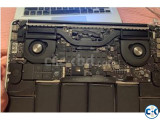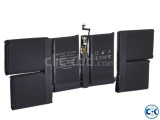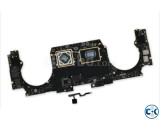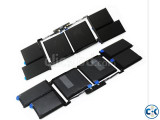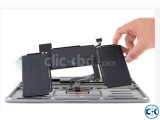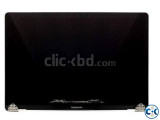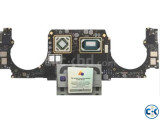
We take care of everything Apply device in Apple Lab

Tk 500
Seller info
Sold by:
AppleLabBD
Member since:
31 Dec 2010
Location:
Dhaka Dhanmondi
Safety tips:
Don’t pay in advance
Meet in a safe & public place
Description

DESCRIPTION for We take care of everything Apply device in Apple Lab price in Bangladesh

Thank you for your message. At Apple Lab, we offer comprehensive services for all your device needs. Whether you need assistance with setting up a new Apple device, troubleshooting issues, or getting repairs done, we can take care of it all.

Our team of trained technicians will ensure that your device is properly configured and optimized for your specific needs. We have extensive experience working with all Apple products, including iPhones, iPads, MacBooks, iMacs, and more.

If your device is experiencing any issues, our experts will diagnose the problem and provide reliable solutions. We use genuine Apple parts for replacements and repairs, ensuring the highest quality and compatibility.

Additionally, we can assist with data transfer, software installations, data backup, and recovery. We prioritize customer satisfaction and strive to provide prompt and efficient service.

To avail our services, you can visit our Apple Lab location or contact us through phone or email. We also offer pickup and delivery options for your convenience.

Trust us to take care of everything related to your Apple devices. Let us handle the technical aspects so that you can enjoy using your device hassle-free.

common problems listed are specifically for MacBook computers. Here are some suggestions for addressing each of the issues:

1. Mac won’t turn on:
– Check the power connection and ensure it’s properly plugged in.
– Reset the SMC (System Management Controller) by following the instructions provided by Apple support.
– If the issue persists, it may be a hardware problem, and it’s advisable to contact Apple Lab

2. Mac won’t boot or black screen:
– Reset the NVRAM or PRAM by restarting your MacBook and holding down the Command + Option + P + R key combination until you hear the startup sound twice.
– Disconnect all external devices and try booting again.
– If the screen remains black, it could point to a hardware issue, and professional assistance is recommended.

3. Mac display lines:
– Try resetting the NVRAM or PRAM (as mentioned above).
– Update your macOS to the latest version.
– If the lines persist, it could indicate a hardware problem, so it’s best to consult a professional.

4. Mac turns on and fans start:
– This is usually normal and means the cooling system is engaged.
– If you’re experiencing excessive fan noise or the fans running for extended periods, it might indicate software or hardware issues. Check for any high CPU or memory usage in Activity Monitor or consult Apple Lab

5. Mac crashes or freezes:
– Restart your MacBook and ensure your software and macOS are up to date.
– Check for any incompatible or problematic third-party software and remove or update it.
– If the issue persists, it might be necessary to perform a clean installation of macOS or seek professional assistance.Apple Lab

6. Slow Mac:
– Run a disk cleanup and remove any unnecessary files.
– Check for any resource-intensive applications or processes running in Activity Monitor and close or manage them efficiently.
– Upgrade your MacBook’s RAM or consider using a solid-state drive (SSD) for improved performance.

7. Mac restarts unexpectedly:
– Update your macOS and applications to the latest version.
– Run a malware scan using a trusted antivirus software.
– If the problem persists, it could be caused by hardware issues, and it’s recommended to seek professional help.Apple Lab

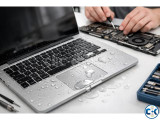
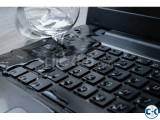
8. Mac spilled water or liquids:
– Immediately power off your MacBook and disconnect any power source.
– Turn it upside down to allow any liquid to drain out.
– Do not attempt to turn it on or use a hairdryer to dry it.
– Take your MacBook to an authorized service center as soon as possible for proper cleaning and to minimize damage.

9. Crashed Mac won’t turn on:
– Try resetting the SMC and NVRAM/PRAM (as mentioned above).
– If the issue persists, it’s essential to consult Apple support or visit an Apple Lab

10. Mac turns on but freezes:
– Restart your MacBook and ensure your software and applications are up to date.
– Remove any unnecessary startup items from System Preferences.
– If freezing continues, it could indicate a deeper issue, and professional assistance is advisable.Apple Lab

Remember, these are general suggestions, and it’s always recommended to seek official support from Apple Lab if you encounter persistent issues with your MacBook.


Post your ad, It's FREE
Similar ads
MacBook Air A2337 Keyboard Replacement Service
 
MacBook Air A2337 Keyboard Replacement Service
Tk 500
MacBook Pro A1708 Display Replacement Available at Apple lab
 
MacBook Pro A1708 Display Replacement Available at Apple lab
Tk 500
M2 Mac Mini Repair SSD Upgrade Apple Lab Dhanmondi
 
M2 Mac Mini Repair & SSD Upgrade – Apple Lab Dhanmondi
Tk 500
MacBook A2337 Auto Restart Problem Fix
 
MacBook A2337 Auto Restart Problem Fix
Tk 500
MacBook A2338 No Power Issue Repair Apple Lab
 
️ MacBook A2338 No Power Issue Repair – Apple Lab ️
Tk 500
Macbook Pro 15-Inch A1990 Battery Replacement Service
 
Macbook Pro 15-Inch A1990 Battery Replacement Service
Tk 500
Macbook Pro A1990 Flexgate Problem Solution
 
Macbook Pro A1990 Flexgate Problem Solution
Tk 500
MacBook Pro 16-inch Repair Service in Dhaka Apple Lab
 
MacBook Pro 16-inch Repair Service in Dhaka – Apple Lab
Tk 500
MacBook Pro A2338 Display Black Issue Fix
 
MacBook Pro A2338 Display Black Issue Fix ️
Tk 500
MacBook M2 Slow Performance Issue Fix
 
MacBook M2 Slow Performance Issue Fix
Tk 500
MacBook M1 Not Charging Issue Fix
 
MacBook M1 Not Charging Issue Fix
Tk 500
Macbook Pro Water Damage Apple lab Near Me
 
Macbook Pro Water Damage Apple lab Near Me
Tk 500
MacBook Overheating Repair
 
MacBook Overheating Repair ️
Tk 500
macbook pro no power A2141 apple lab
 
macbook pro no power A2141 apple lab
Tk 500
MacBook Pro Keyboard Replacement
 
MacBook Pro Keyboard Replacement
Tk 500
Expert Logic Board Repair for A1990 2018-2019 MacBook Pro
 
"Expert Logic Board Repair for A1990 2018-2019 MacBook Pro
Tk 500
MacBook Pro Shuts Down After Liquid Damage for Logic Board
 
MacBook Pro Shuts Down After Liquid Damage? for Logic Board
Tk 500
Apple MacBook Pro Air Liquid Damage Water Repair Service
 
Apple MacBook Pro / Air Liquid Damage Water Repair Service
Tk 500
Mac mini 2024 Repair in Dhaka Trusted Service at Apple Lab
 
Mac mini (2024) Repair in Dhaka—Trusted Service at Apple Lab
Tk 500
Expert Mac Mini and iMac Repairs Upgrades at Apple Lab
 
Expert Mac Mini, and iMac Repairs Upgrades at Apple Lab
Tk 500
MacBook Pro Max Cracked Screen Repair Replacement
 
MacBook Pro Max Cracked Screen Repair & Replacement
Tk 500
Mac Pro 2019-এর জন্য নির্ভরযোগ্য রিপেয়ার সেবা
 
Mac Pro 2019-এর জন্য নির্ভরযোগ্য রিপেয়ার সেবা
Tk 500
Repair Service for MacBook Air 13 2024 M3 at Apple Lab
 
Repair Service for MacBook Air 13″ (2024, M3) at Apple Lab
Tk 500
MacBook Keyboard Trackpad Not Working Expert Repairs
 
MacBook Keyboard & Trackpad Not Working? Expert Repairs
Tk 500
Expert MacBook Pro 16-inch A2991 Repairs
 
Expert MacBook Pro 16-inch (A2991) Repairs
Tk 500
Identifying Water Damage in Your MacBook
 
Identifying Water Damage in Your MacBook
Tk 500
MacBook Pro 14 A3185 M4 MAX Liquid Damage Logic Board Repai
 
MacBook Pro 14" A3185 M4 MAX Liquid Damage Logic Board Repai
Tk 500
Expert MacBook Pro 16-inch M1 No Backlight Repair
 
Expert MacBook Pro 16-inch M1 No Backlight Repair
Tk 500
Physical Damage Drone Repair
 
Physical Damage Drone Repair
Tk 500
MacBook Air 15 A2941 2023 Logic Board Repair Service
 
MacBook Air 15" A2941 2023 Logic Board Repair Service
Tk 500
Mac OS Repair Services in Dhanmondi
 
Mac OS Repair Services in Dhanmondi
Tk 500
MacBook Pro A2289 2020 No Power Repair
 
MacBook Pro A2289 2020 No Power Repair
Tk 500
...